
Using the Material queuing function
“Please talk to an ART staff member if you are not comfortable or have any questions about this process”
The material queuing functions allows the machine to feed in material automatically and shift new material to the front of the infeed table making space to continually load lengths at the rear. This takes away the need to jog the infeed grippers to the next length of material every time a new length of material is started. This makes for a more automated cutting sequence and helps to reduce handling time.
Start off by loading a job queue/nest.
Load your material onto the infeed table
There are two ways you can load material into the automatic queuing system, using the wireless pendant or on-screen in ProfileShop.
-Using the software
Make sure you are in the “Cut Job” menu ( This can also be accessed in the “Origin” menu).

Jog the grippers to the edge of the first piece of material.
Once in place press, the “Queue Up Material” button to signal you would like to queue the beam.

You will see the material shift to its queued position.
Repeat this for as many lengths you have or until the infeed table is full.
To clear the queue, press the “Clear Queue” button.
– Using the pendant
Jog the grippers to the edge of the first piece of material.
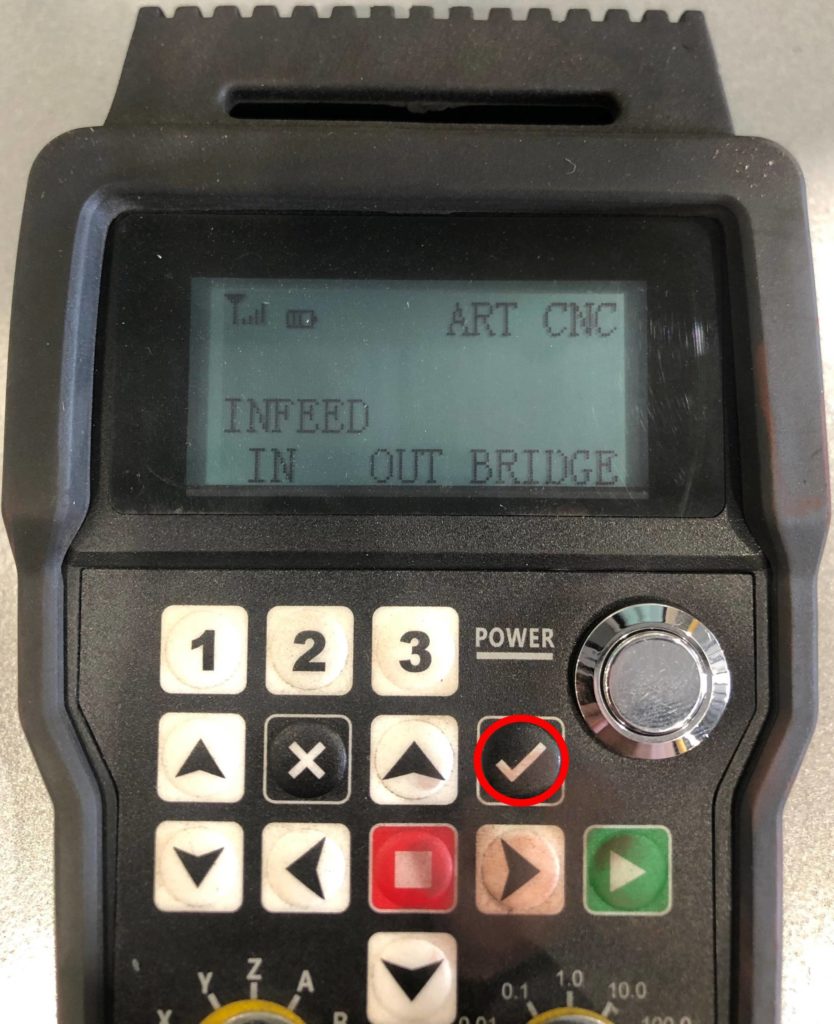
Once in place press, the tick button on the pendant remote to signal you would like to queue the beam.
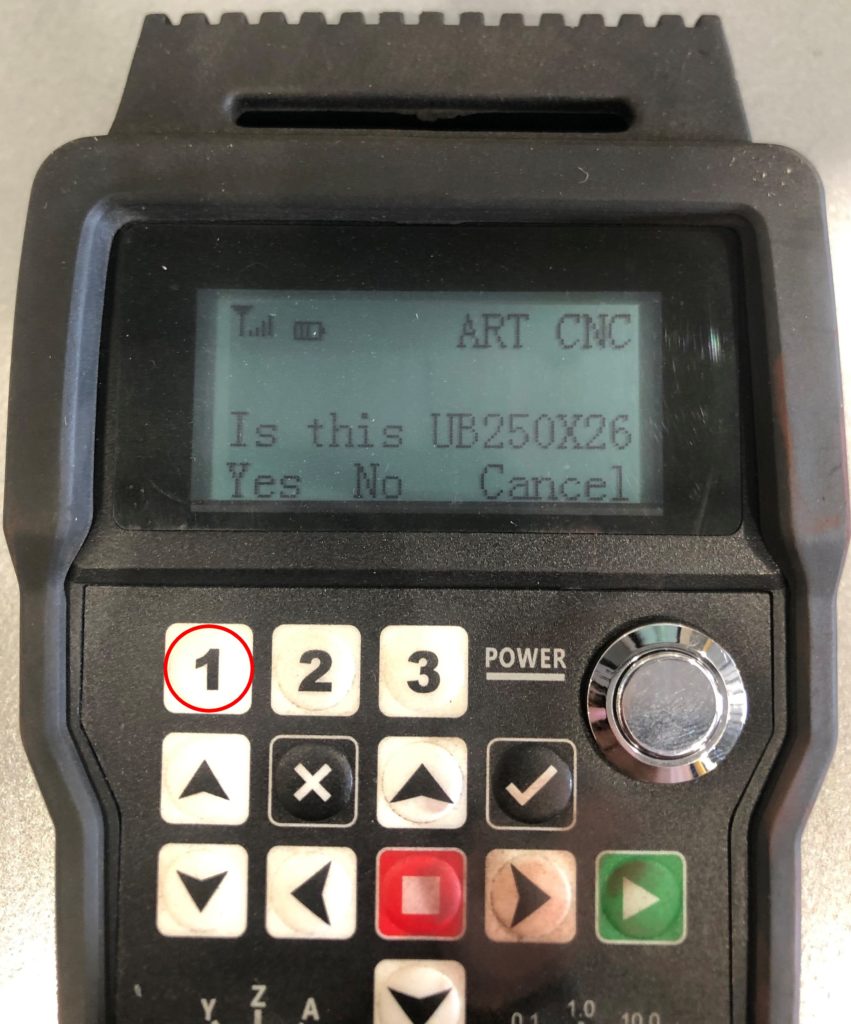
Press the 1 button to confirm you would like the material queued.
Press the “1” button one more time to confirm it is safe to proceed to automatically shift the material to its queue position.
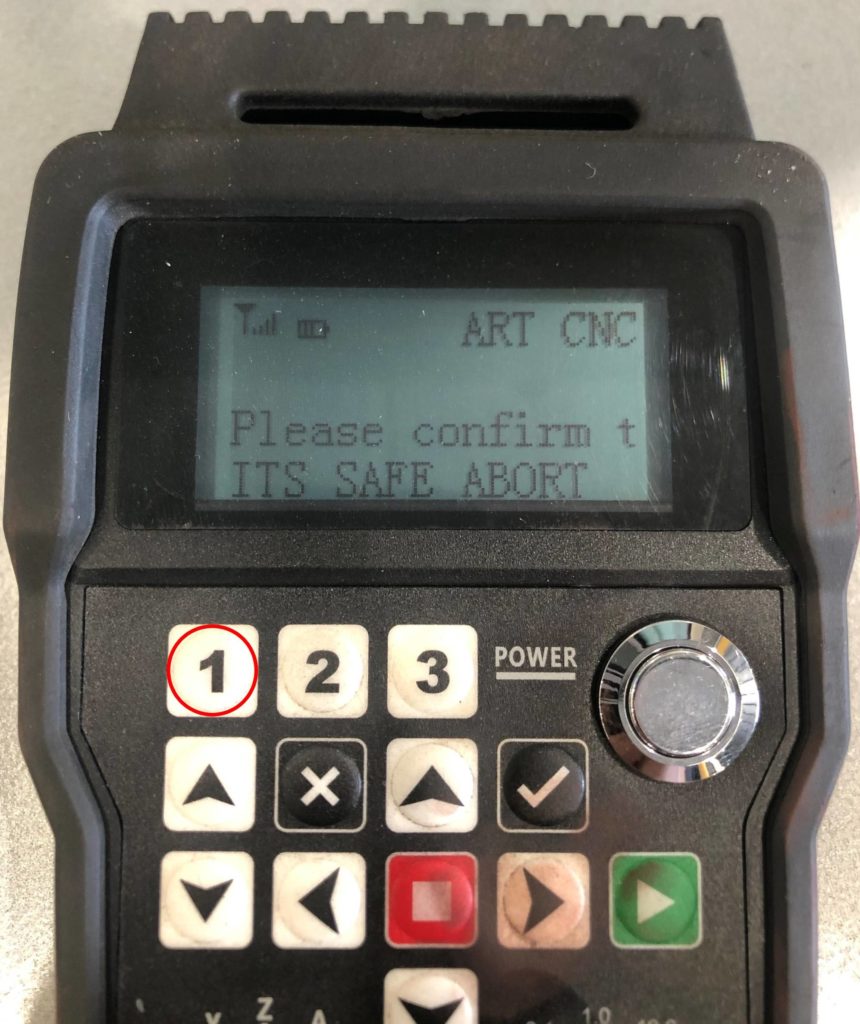
You will see the material shift to its queued position.
Repeat this for as many lengths you have or until the infeed table is full.