
Using the trim settings on SHS/RHS
Using the trim setting will adjust the percentage of the radius that is trimmed off start and finish of the tool path.
This can be adjusted to suit different cuts such as bevels and notches. This affects all cuts and etches on the Web/Flanges of the section.
The setting is found in “Beamline Settings” and in the “Job” tab of the right-hand menu. The file will need to be reloaded when you change these settings.
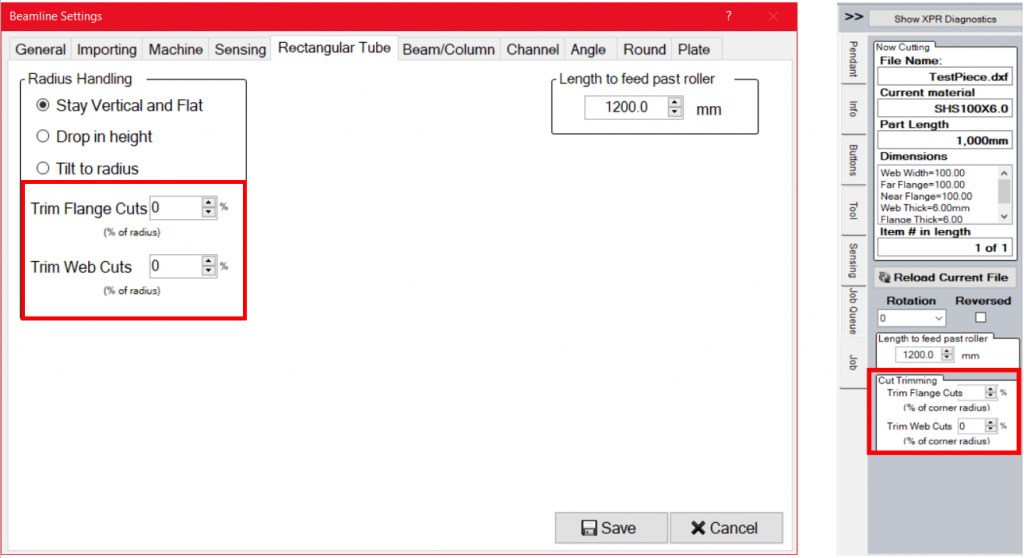
(We will be using the vertical and flat setting as it provides a clearer example on how the tool paths are affected by the setting, The setting works the same for all 3 radius handing options)
Currently, the settings are on 0% for both the flange and web, you can see the cut starts and ends on the edge of the material. Increasing these values will trim the cuts starting and ending points. This is helpful as most of the time it is not advised to start on the edge of the material where intersecting cuts are as the plasma may not be able to strike an arc in the cut left previous.
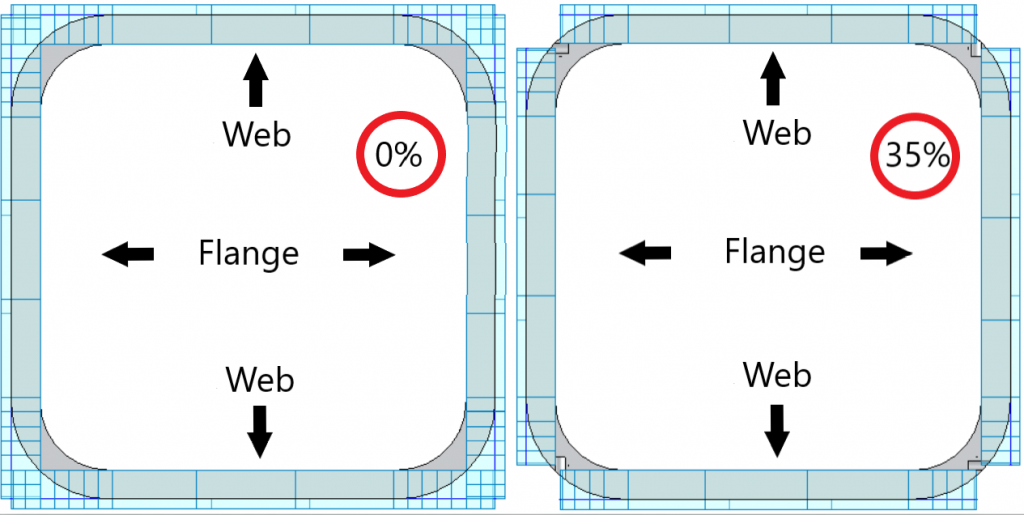
I would recommend using a 35% trim for both flange and web when cutting straight and bevel cuts, But of course, this will depend on what type of cut you are cutting.